How It Works
Everything you need to know, from signup to streaming.
1. Create your account
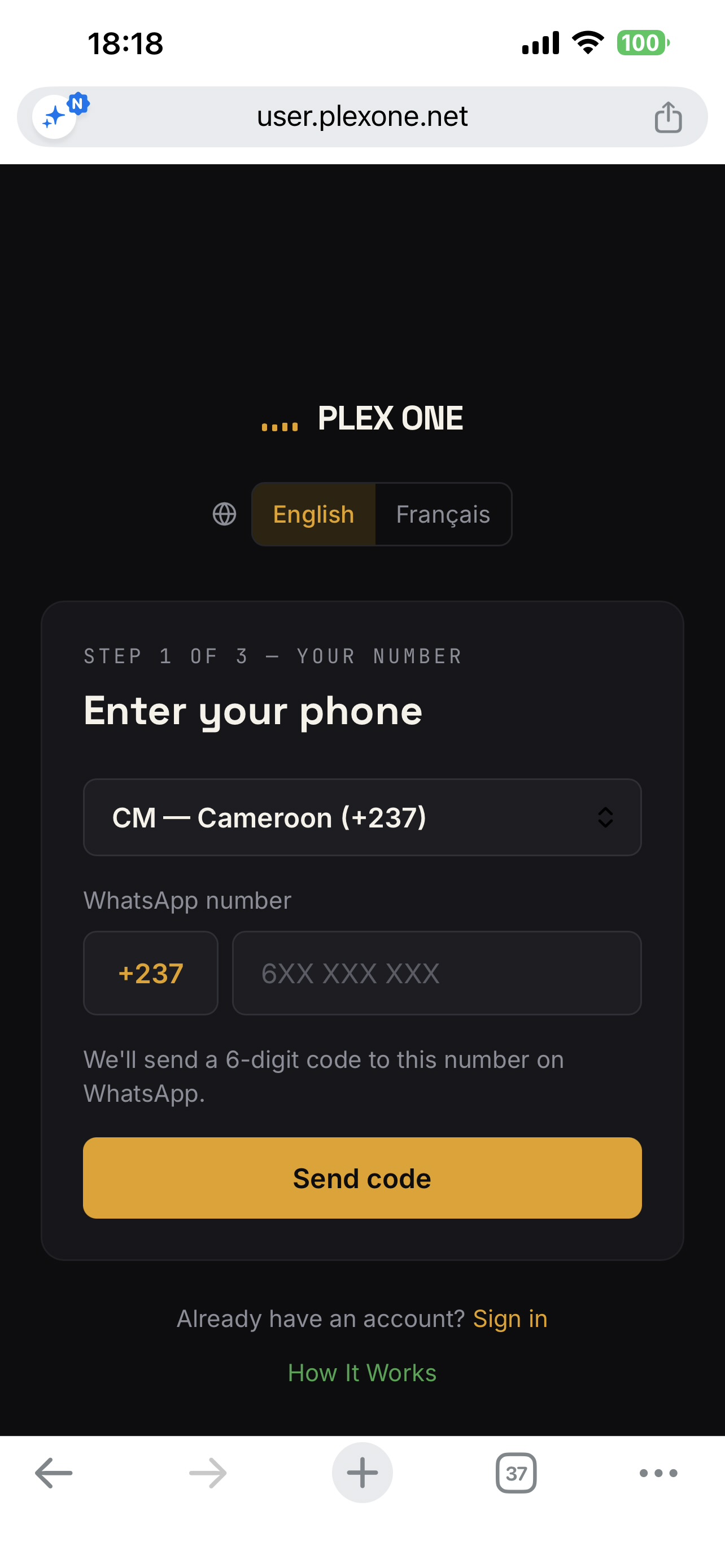
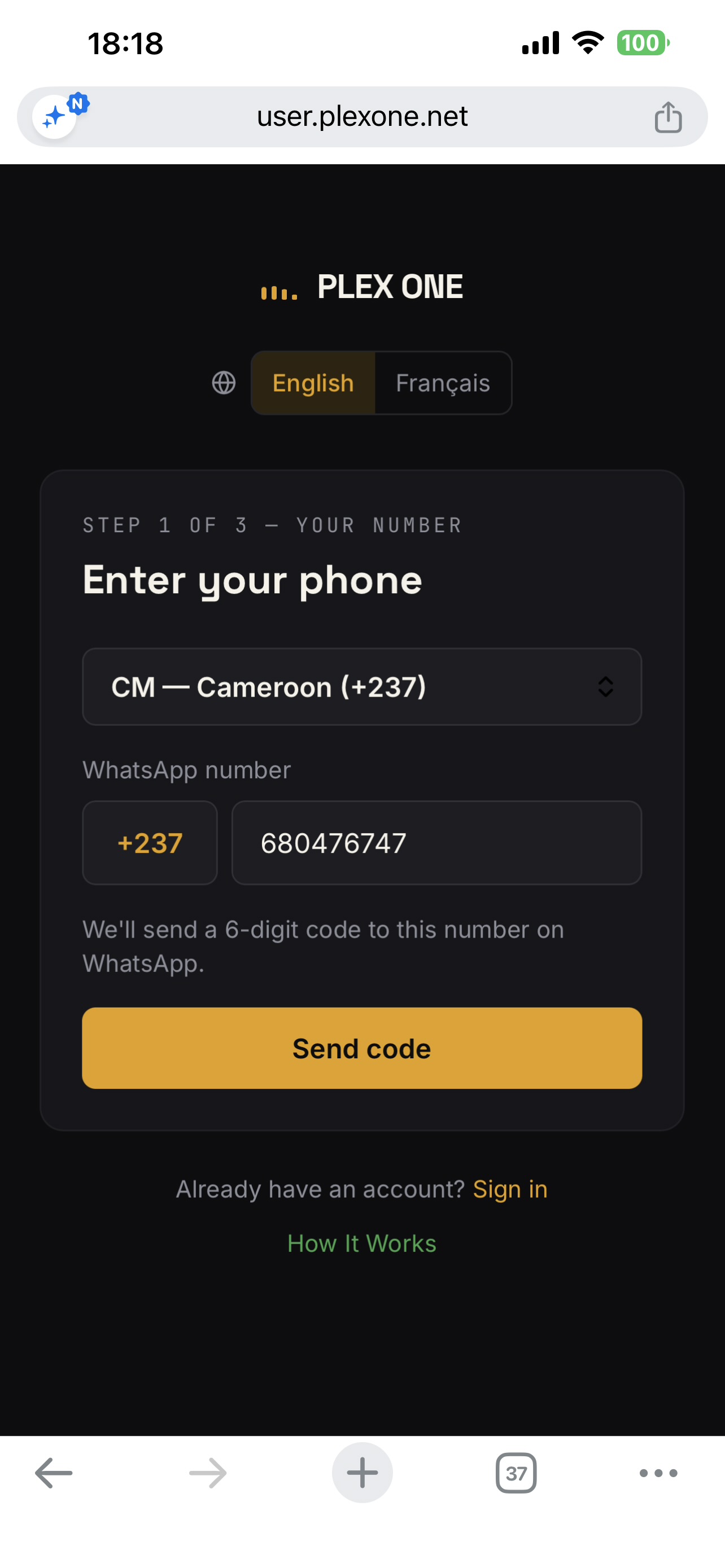
Enter your WhatsApp number, verify it with the 6-digit code we send you, then choose a name and password. That's it — your account is created.
2. Get 5 bonus days on your first subscription
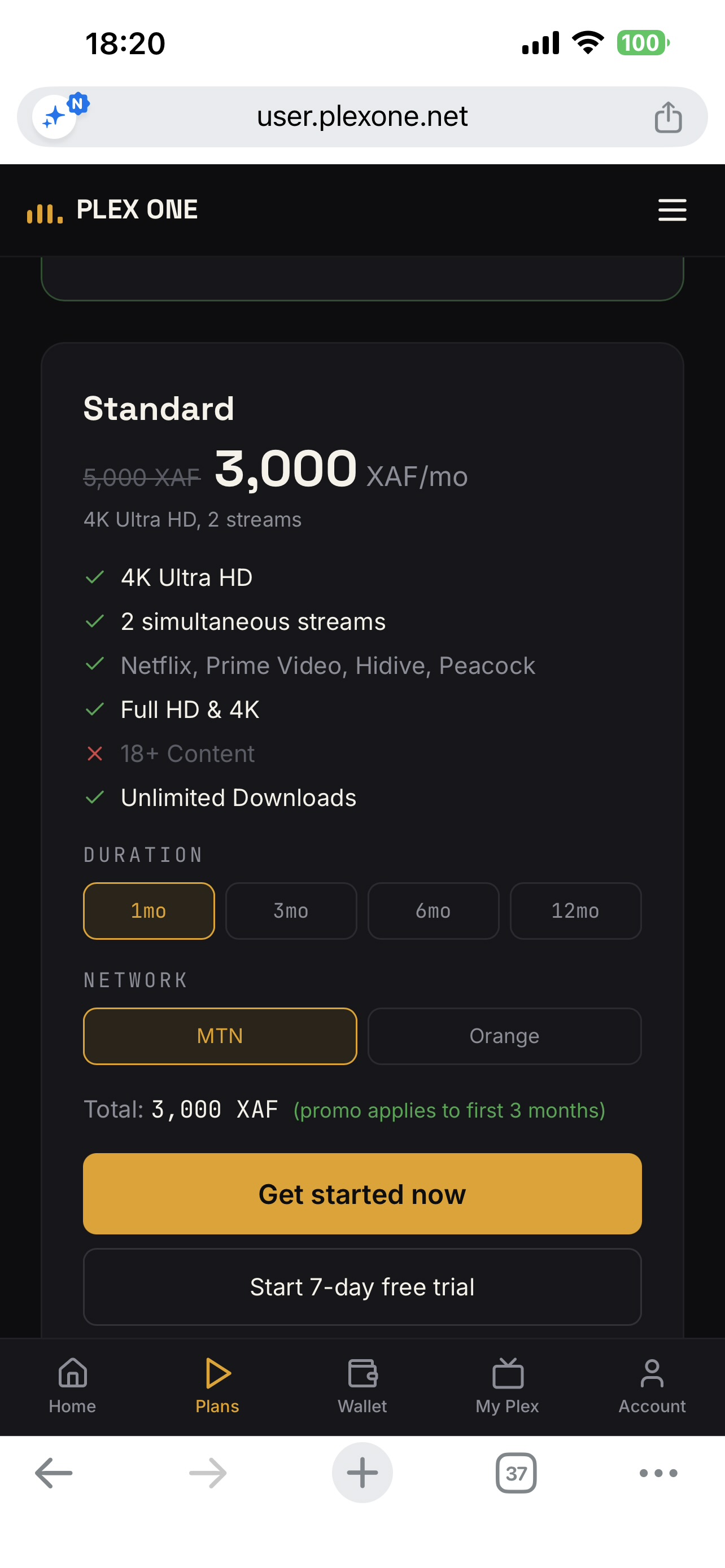
There is no free trial anymore — instead, your very first subscription, on any plan and any duration, automatically comes with 5 bonus days added on top. Nothing to enter or claim: just pick a plan on the Plans page and subscribe, and the 5 extra days are added to your expiry date for you.
3. Loading your wallet (when you're ready to subscribe)
Go to Wallet, choose an amount, and pay by MTN or Orange Mobile Money (or card). If your payment doesn't auto-confirm within a minute, you can upload a screenshot of your Mobile Money receipt and we'll read it and credit your wallet automatically.
4. Subscribing to a paid plan
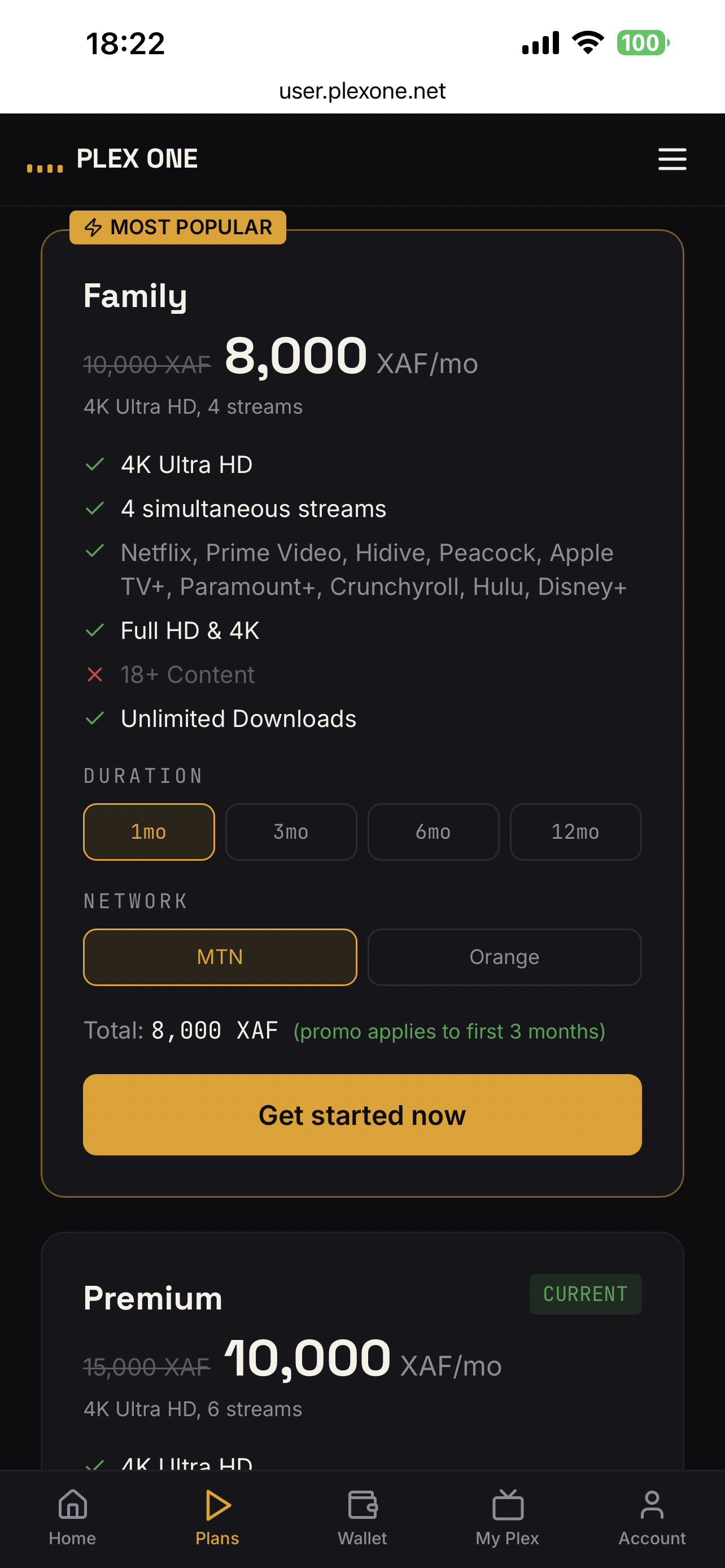
On the Plans page, pick a plan and pay either by Mobile Money directly, or straight from your wallet balance if you've already topped it up — wallet payments are instant.
5. Accept your Plex invitation & connect your account (very important)
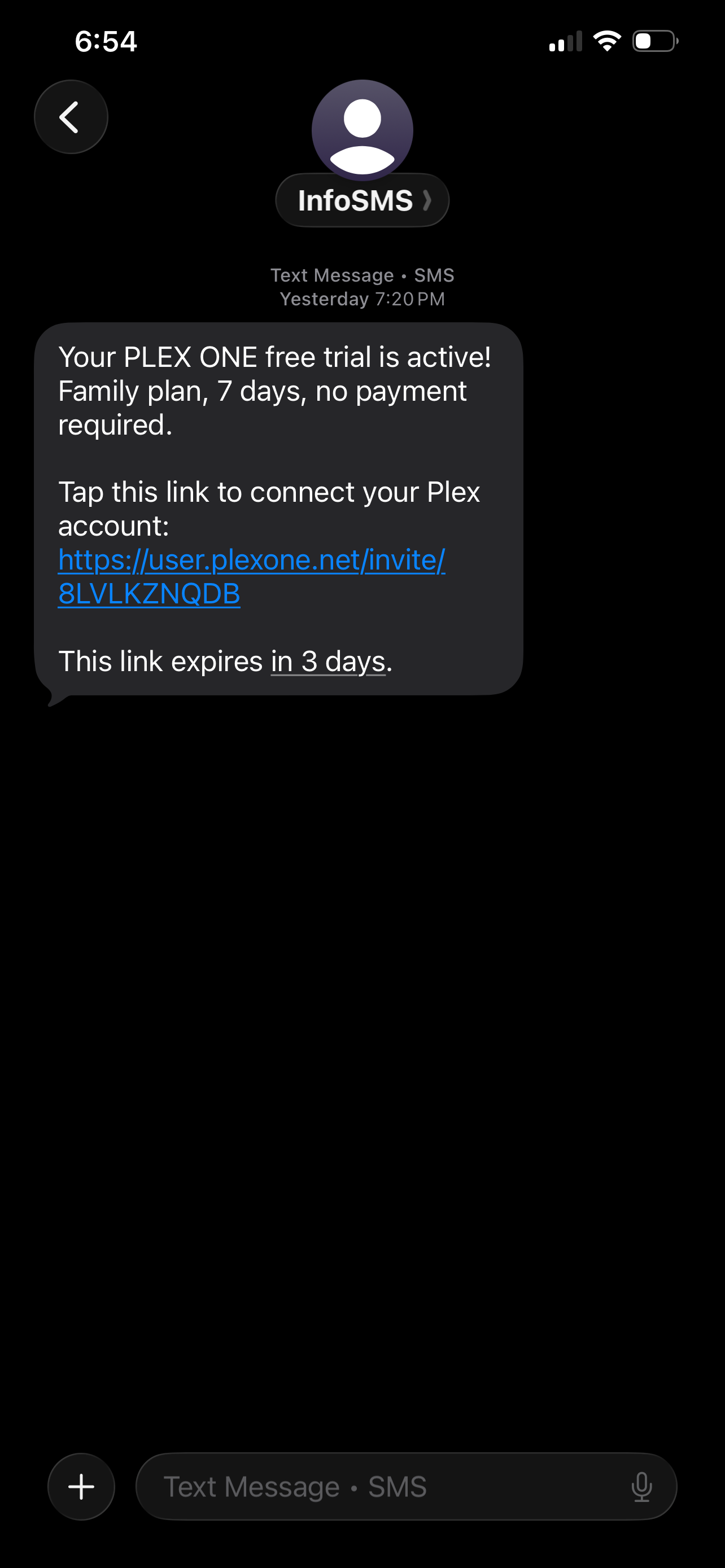
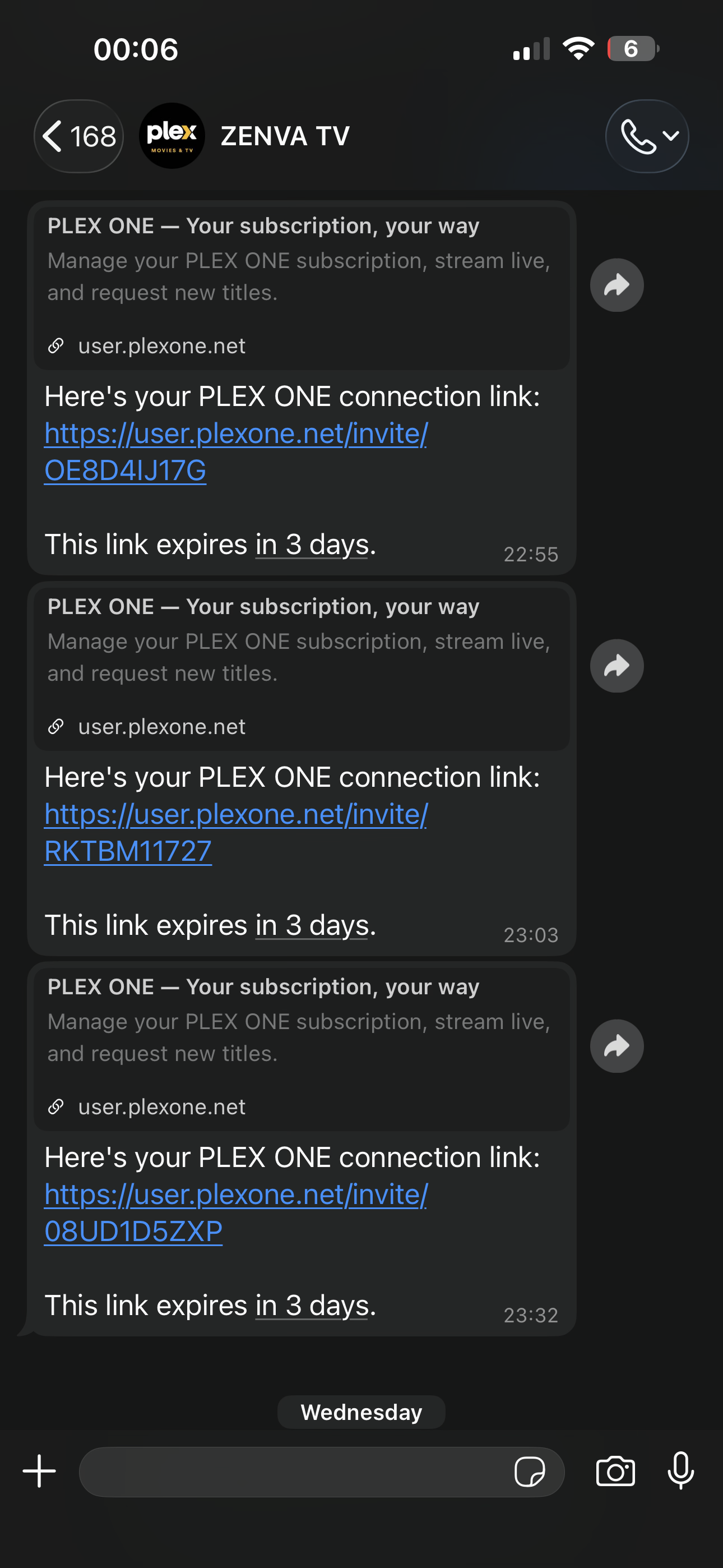
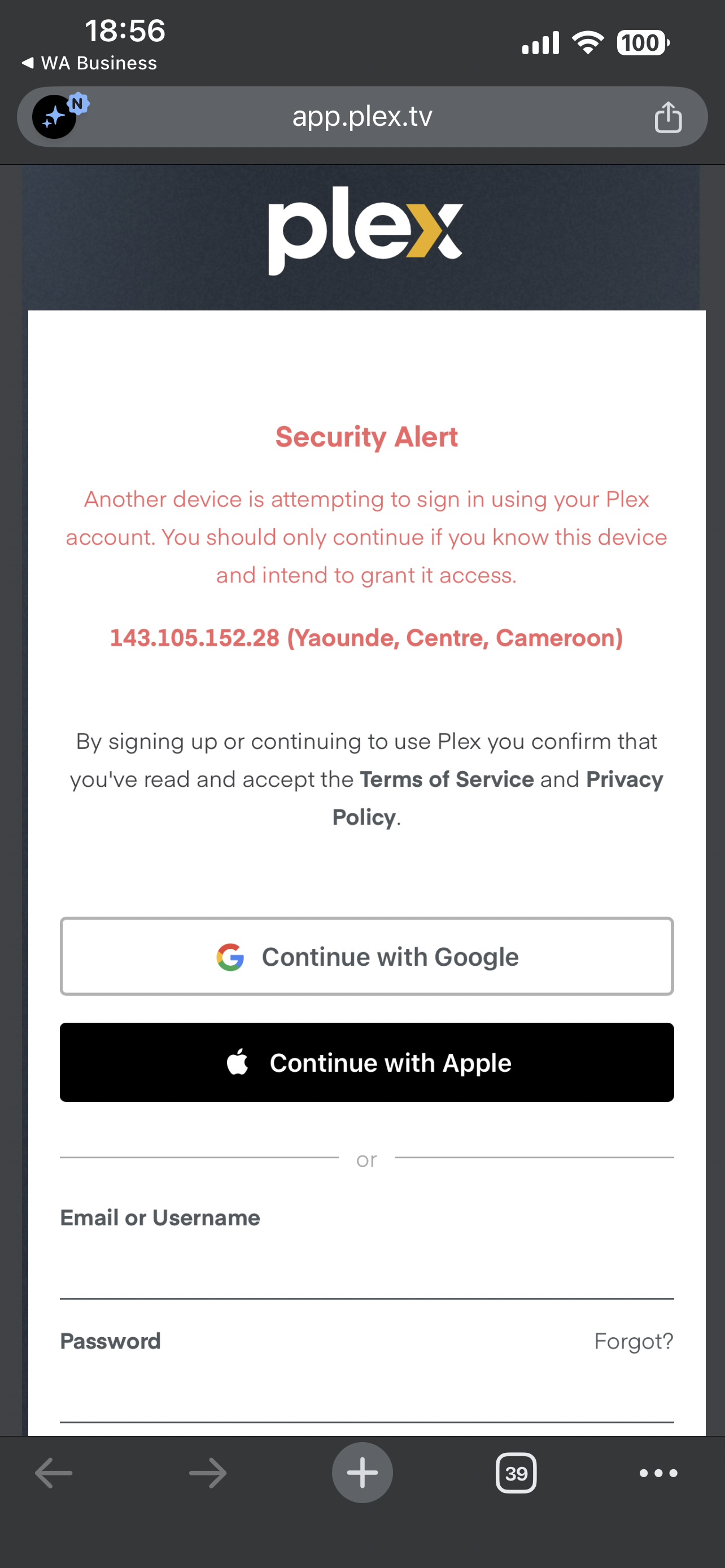
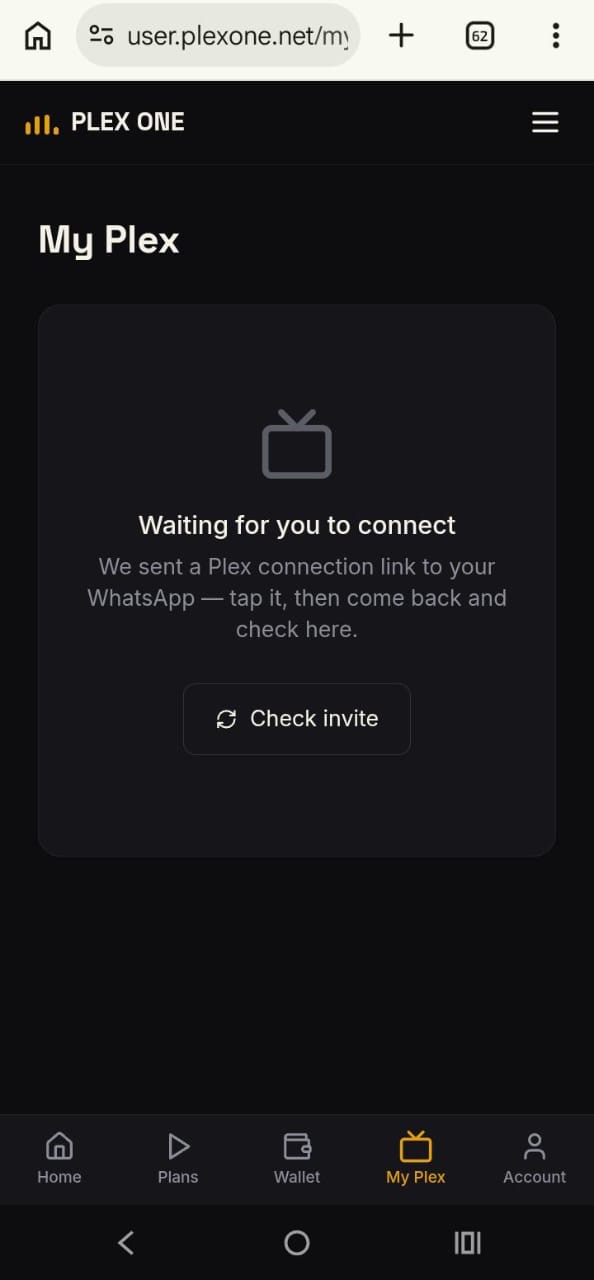
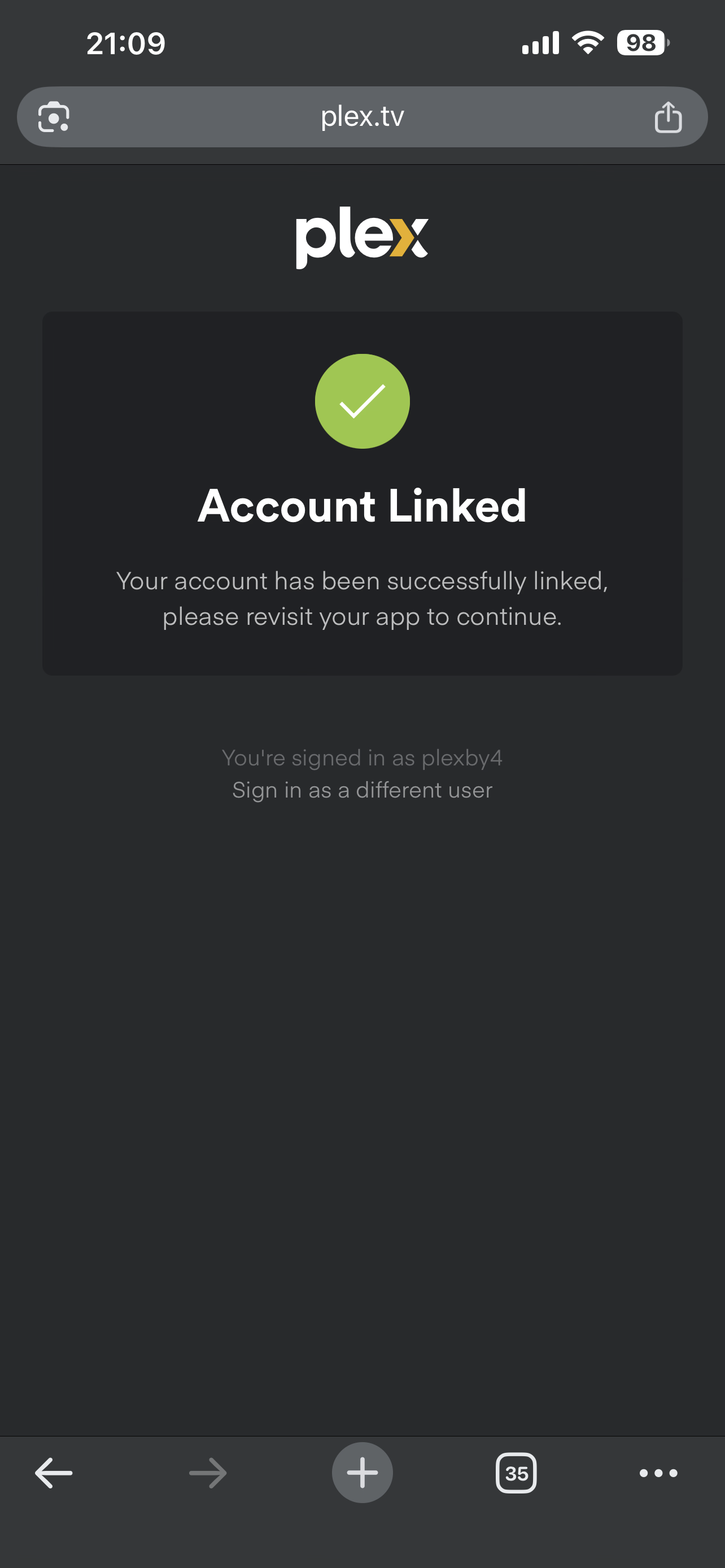
As soon as your subscription activates, we send you a Plex connection link on WhatsApp — tap it. This is the single most important step; without it, nothing else works. If you don't yet have a personal Plex account, the invitation link itself walks you through creating one for free right there — you don't need to do this anywhere else first. Once you've tapped it and signed in, go to "My Plex" in the menu and tap "Check invite" to confirm.
6. If "Check invite" doesn’t confirm right away
This is normal the first time — it can take a few seconds to register on Plex’s side after you sign in. Wait a moment and tap "Check invite" again. If it still doesn’t confirm after a minute or two, contact support and we’ll look into it directly.
7. Requesting movies & shows
Can't find something in the library? Go to "Request a title," search for it, and submit a request. We'll get it added and send you a WhatsApp message the moment it's ready — you'll also see a "Watch Now" button appear right on that request once it's available.
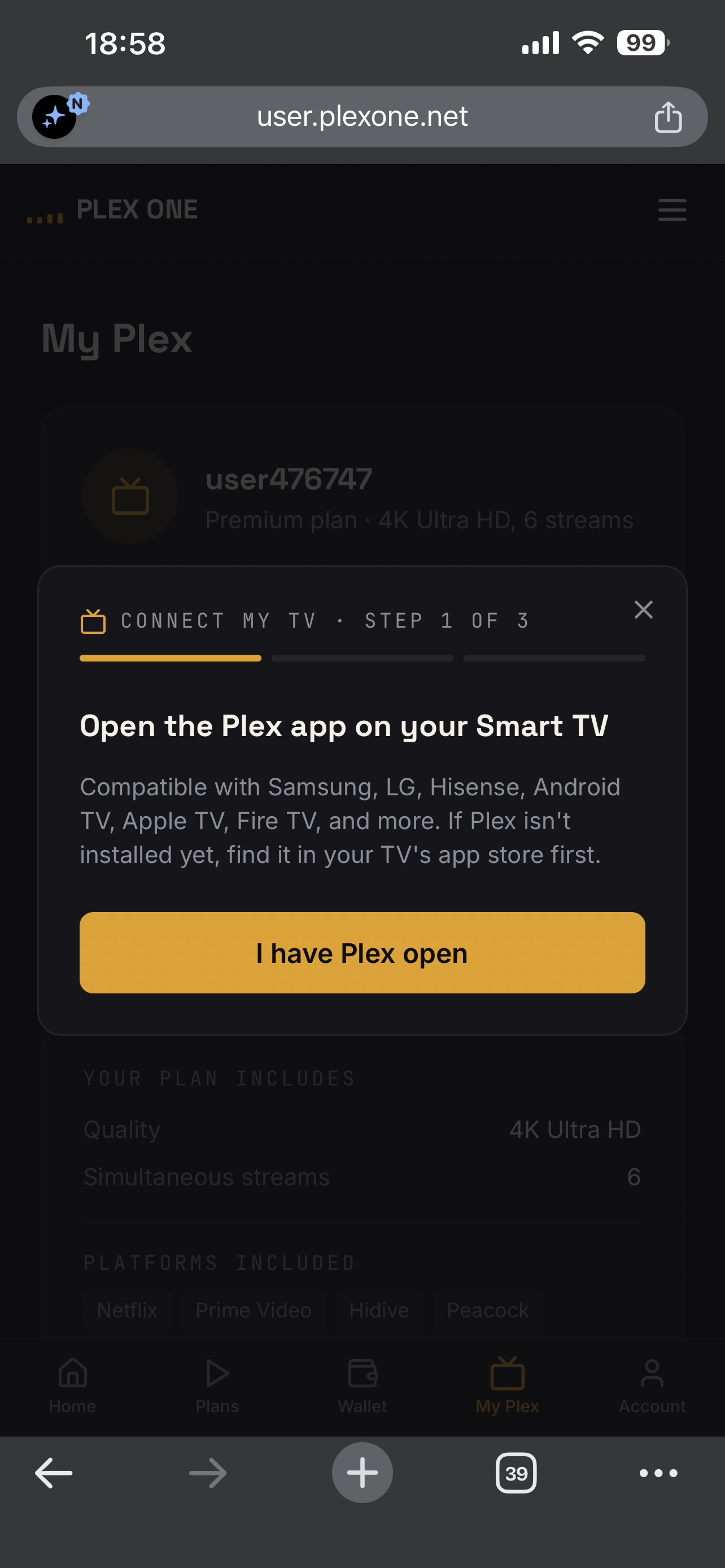
8. Connecting your TV
On "My Plex," tap "Connect my TV." Open the Plex app on your Smart TV (Samsung, LG, Android TV, Apple TV, Fire TV, and more are all supported), find the short code shown on the TV screen, and enter it on this page to link them together.